Callastream | Easy Digital Signage

CallaStream Player for Amazon Fire Stick โ€” Easy Digital Signage
Getting Started โ€บ Amazon Fire Stick
๐Ÿ”ฅ Most Popular Setup

CallaStream on
Amazon Fire Stick

Getting CallaStream up and running on your Fire Stick takes just a few minutes. No technical experience needed โ€” if you can use a remote, you can set this up.
โฑ Average setup time: under 5 minutes
CallaStream on Fire Stick
FIRE STICK
โ†’ HDMI
1
Install the App
โ€บ
2
Open on Fire Stick
โ€บ
3
Note Your Code
โ€บ
4
Claim in Dashboard
โ€บ
5
You're Live!
Features

Your TV. Your content. Fully managed.

Plug a Fire Stick into any HDMI TV and turn it into a professional digital display โ€” managed entirely from your dashboard.

๐Ÿ“บ
Any HDMI Screen
Works with any TV with an HDMI port. Restaurant, retail, lobby, waiting room โ€” if it has HDMI, it can be a digital sign.
๐Ÿ“…
Scheduled Content
Set different content to play at specific times and days. Your morning menu switches to lunch specials automatically.
โšก
Simple Activation
Install the app, enter the 6-character code in your dashboard, and the screen is live in under 2 minutes.
๐Ÿ”
Online Monitoring
See which screens are online, what's playing, and when they last checked in โ€” all from your dashboard.
๐ŸŽต
Playlist Support
Build playlists with multiple items and set each to play for a custom duration โ€” great for slideshows and menus.
๐Ÿ”„
Auto-Restart
The app launches automatically on boot and recovers from power cuts, so your screen is always showing content.
Compatibility

Works on all Fire Stick & Fire TV generations

Any Amazon Fire device with Fire OS 5.0 or higher is supported.

Fire Stick 4K Max
Recommended
Fire Stick 4K
Fire OS 6+
Fire Stick (3rd gen)
Fire OS 6+
Fire TV Cube
Fire OS 6+
Fire Stick (2nd gen)
Fire OS 5+
Fire TV (older)
Fire OS 5+
Requirements

System requirements

Fire OS version
Fire OS 5.0 or higher
File size
5.0 MB (APK)
Account required
Yes โ€” free to create
Internet
Required for content sync
HDMI port
Required on your TV
Permissions
Internet, Boot on startup
Installation

Choose your installation method

Pick the option that works best for you. All three methods install the same app โ€” we recommend Method 1 for the easiest experience.

1
On your phone or computer

Go to the CallaStream listing on Amazon.com

Visit the CallaStream Player page on Amazon. Make sure you're signed into the same Amazon account your Fire Stick is registered to.

2
On Amazon.com

Select your Fire Stick & click Send

Under the "Deliver to" dropdown on the Amazon listing, select your Fire Stick or Fire TV device. Click "Get App" or "Send to Device." Amazon pushes the app directly โ€” no touching the Fire Stick needed.

3
On your Fire Stick

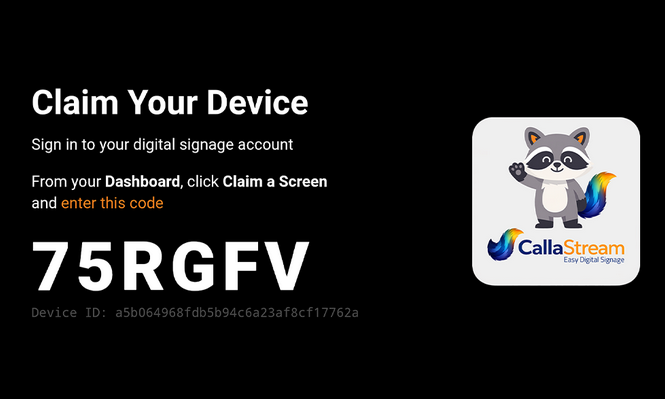
Open CallaStream & note your activation code

The app installs automatically on your Fire Stick. Open it and your TV will display a unique 6-character activation code.

CallaStream activation code screen
Keep the app open โ€” you'll need this code for the next step on your phone or computer.
โœ“
On your phone or computer

Claim your screen in the dashboard

Log in to your CallaStream dashboard at callastream.com/dashboard-v2 and enter the activation code shown on your TV. Your screen appears in your account immediately โ€” assign a license and start publishing content.

No account yet? Create one free at callastream.com/dashboard-v2 โ€” takes 60 seconds.
1
On your Fire Stick

Open the Amazon Appstore

From the Fire Stick home screen, navigate to the top menu and select Apps, or press the search button on your remote and go to the Appstore directly.

Tip: Say "Open Appstore" using Alexa voice control on your Fire Stick remote.
2
On your Fire Stick

Search for CallaStream

Use the search bar in the Appstore to search for CallaStream. Select the CallaStream Player app from the results.

๐Ÿ”ฅ
Available on theAmazon Appstore
3
On your Fire Stick

Download & Install the App

Select Download or Get to install CallaStream. The app is free to download โ€” you'll activate it with a license from your dashboard after installation.

Takes about 30 seconds depending on your connection speed.
4
On your TV screen

Open the App & Note Your Activation Code

Once installed, open CallaStream. Your TV will display a unique activation code. This code links your physical screen to your CallaStream account.

CallaStream activation code screen
Don't close the app โ€” keep this screen visible while you complete the next step.
โœ“
On your phone or computer

Claim Your Screen in the Dashboard

Log in to your CallaStream dashboard at callastream.com/dashboard-v2 and enter the activation code shown on your TV. Your screen will appear in your account immediately.

No account yet? Create one free at callastream.com/dashboard-v2 โ€” takes 60 seconds.
1
On your Fire Stick

Enable apps from unknown sources

On your Fire Stick, go to Settings โ†’ My Fire TV โ†’ Developer Options and turn on Apps from Unknown Sources.

Settings โ†’ My Fire TV โ†’ Developer Options โ†’ Apps from Unknown Sources
2
On your Fire Stick

Install the Downloader app

Search for "Downloader" in the Amazon Appstore and install the free app by AFTVnews. This is how you'll transfer the APK to your Fire Stick.

3
On your Fire Stick

Download and install the APK

Open Downloader, enter the APK URL below, and tap Go. When the download finishes tap Install.

callastream.com/downloads/amazon
Note: Amazon may reset "unknown sources" after a Fire OS update. If the player stops working after an update, re-enable it in Developer Options.
โœ“
Same finish line

Claim your screen

The app launches and shows a 6-character code. Enter it in your CallaStream dashboard under Claim a Screen and you're live.

Changelog

Version history

v1.4.2
Apr 2026
New Responsive claim screen layout for all Fire device sizes
Fix TV scaling and orientation locked to landscape
v1.4.0
Mar 2026
New Amazon Appstore submission
Fix Claim screen logo loads correctly on first launch
v1.0.0
Feb 2026
New Initial release โ€” WebView player, device claiming, auto-boot
FAQ

Common questions

Will it work on my older Fire Stick?
Yes โ€” CallaStream Player supports Fire OS 5.0 and higher, which covers all Fire Stick generations from the 2nd generation onwards.
What's the difference between the Appstore version and the APK?
They are the same app. The Appstore version is easier to install and updates automatically. The APK sideload method is an alternative if you prefer not to use the Appstore.
Will Amazon reset my "unknown sources" setting after an update?
Yes โ€” Amazon occasionally resets this setting after Fire OS updates. If your player stops working after a device update, re-enable Apps from Unknown Sources in Developer Options.
What happens if the Fire Stick loses power or reboots?
CallaStream Player launches automatically on boot. As soon as the Fire Stick powers on and connects to the internet, your content starts playing again.
Do I need a CallaStream account?
Yes โ€” the player app connects to your CallaStream account to receive content. Create a free account at callastream.com and start a 7-day free trial with no credit card required.
Ready to go live?

Your screen is minutes away from being live

Install the app on your Fire Stick and push your first piece of content โ€” all in under 10 minutes.

7-day free trial ยท Credit card required ยท Cancel before day 8 and you won't be charged

Using a different device?

Set up on Android instead โ†’
Getting Started Features Pricing Reseller News ● Dashboard